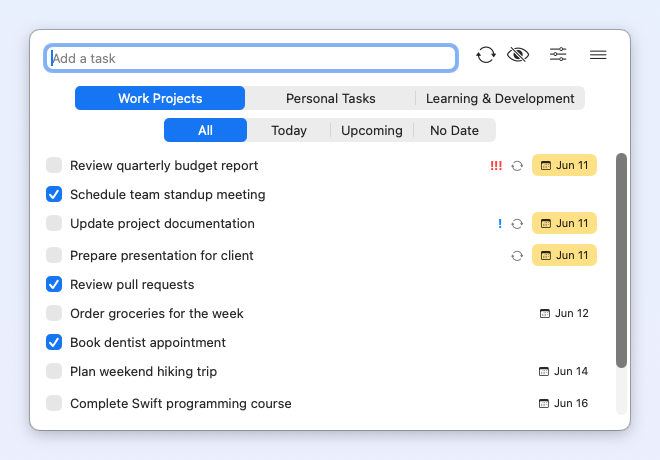
Welcome to Taskin, a simple and intuitive task management app for macOS. This guide will help you get started and make the most of Taskin's features.
There are several ways to create a new task:
Each task can include:
Click the checkbox next to a task to mark it as complete. Completed tasks are moved to the completed section.
Click on any task to open its details and make changes.
Right-click on a task and select "Delete".
With Taskin Pro, your Google Tasks lists appear as tabs at the top of the popover, letting you switch between different lists. Lists themselves are managed in Google Tasks (web or Google Calendar app).
Use the toggle at the top of the popover to show or hide completed tasks in the main list.
Open the Calendar view to see your tasks on a monthly calendar. Visualize deadlines and plan ahead at a glance.
Open the History view to review your completed tasks over time and track your productivity.
Press the global hotkey (default ⌃ + ⌥ + Space) to open the Quick Add window from anywhere on macOS. You can customize this hotkey in Settings.
If you have any questions or encounter any issues, please contact us:
Have a question, hit a bug, or want to request a feature? Get in touch here.